When editing accommodations for a student, one or more accommodations may require approval. If this is the case, the Save button will be labeled Request Approval and Save, and you'll be prompted to add any relevant comments. The approver will see an alert that accommodations need to be approved. See also: Update Accommodations for Multiple Students
To request approval:
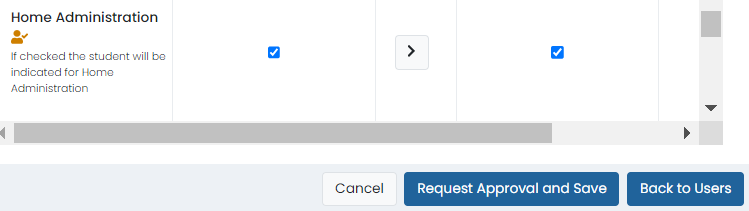
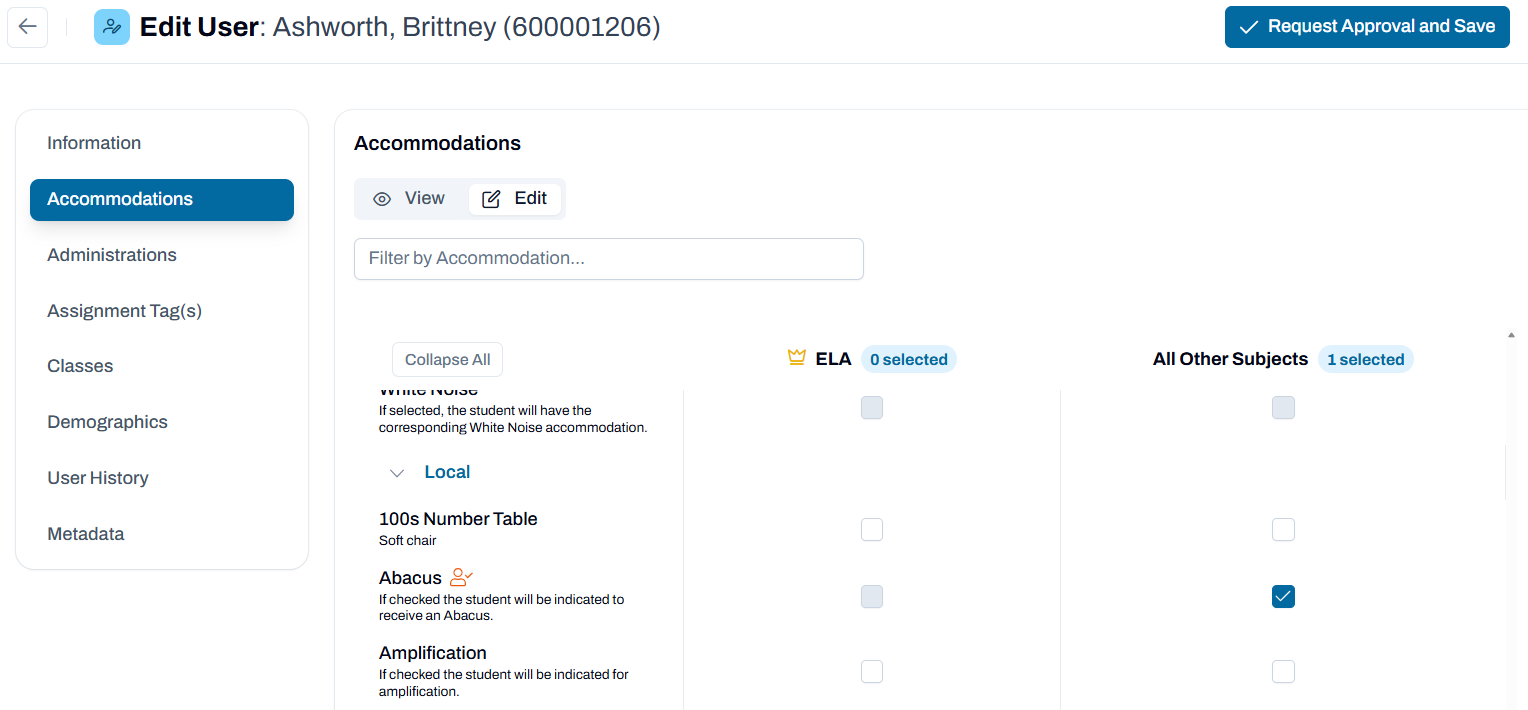
1. When adding an accommodation for a single student that requires approval, select Request Approval and Save.
Classic User Interface:
Updated User Interface:
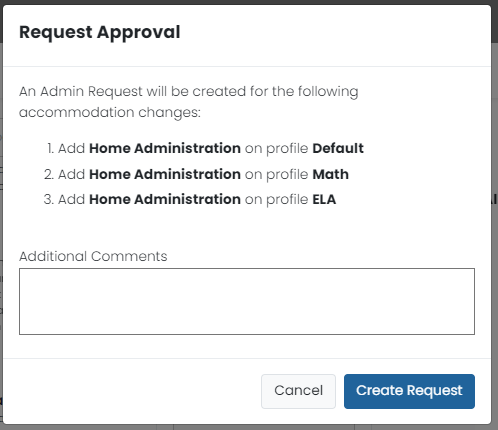
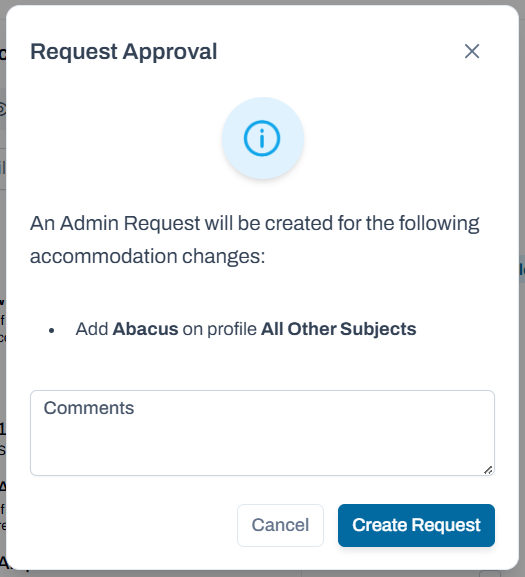
2. In the pop-up box. view the list of requests that require approval, enter any needed comments and select Create Request.
Classic User Interface:
Updated User Interface:
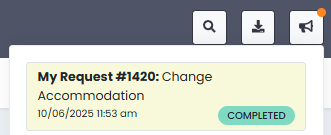
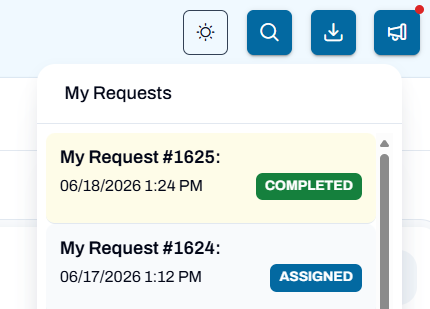
3. Once approved, the accommodation will be assigned to the student. A red dot on the Notifications icon in the navigation bar will indicate an alert when the request is either granted or rejected. Select the icon to see notifications. You can select the notification to access My Requests.
Classic User Interface:
Updated User Interface:
Tiny Link: https://support.assessment.pearson.com/x/YQCyC