Client Settings: Delivery Preferences
Use the Delivery Preferences page to define test delivery settings used in your ADAM environment. This page is only available to designated admin roles.
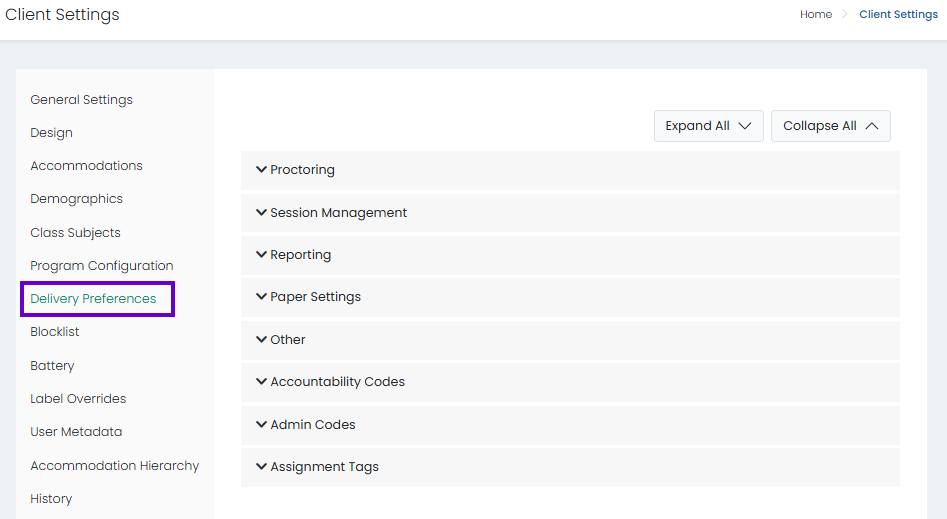
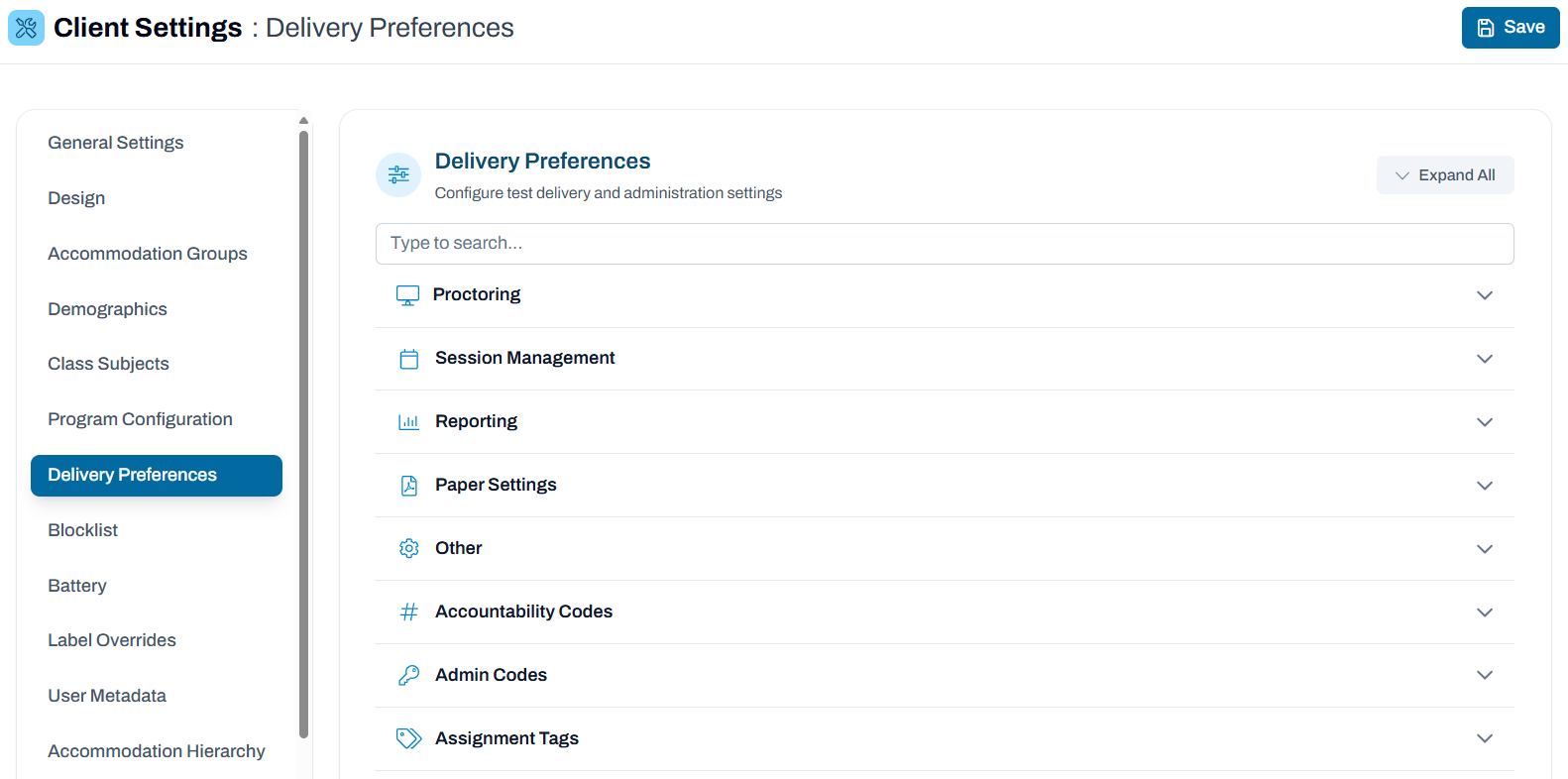
- Go to System > Client Settings.
- Select the Delivery Preferences tab.
- Expand a category below to view details on how to define the appropriate delivery settings.
- Be sure to select Submit to save any changes.
Classic User Interface:
Updated User Interface:
Proctoring
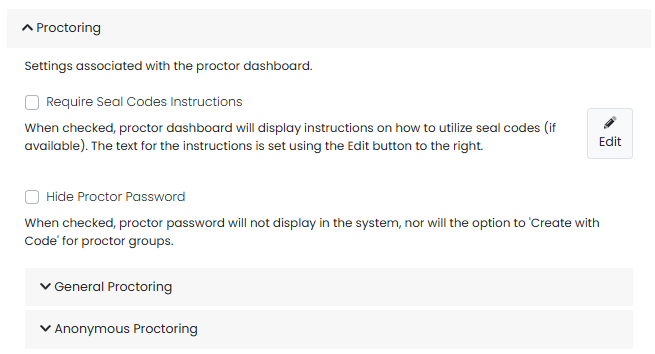
Settings configured here are associated with the proctor dashboard.
Classic User Interface:
Updated User Interface:
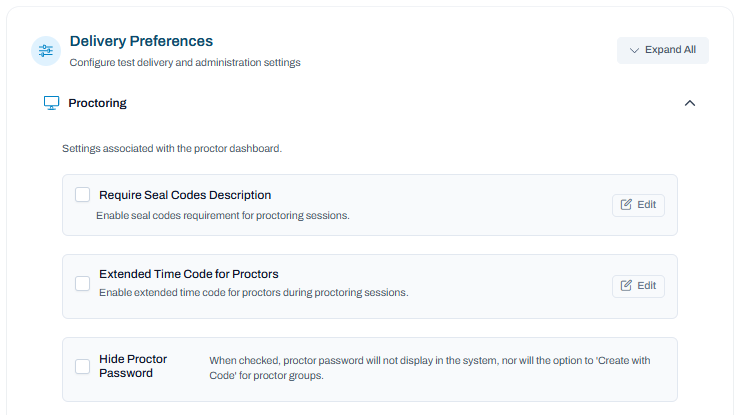
Require Seal Codes Description: This option enables seal codes to be hidden and forces proctors to select a button to view. When selected, proctor dashboard will display a popover button with instructions on how to use the seal codes (if available). Select Edit to add the text for the instructions.
Extended Time Code for Proctors: Enable extended time code for proctors during proctoring sessions.
When selected, proctor password will not display in the system, nor will the option to 'Create with Code' for proctor groups.
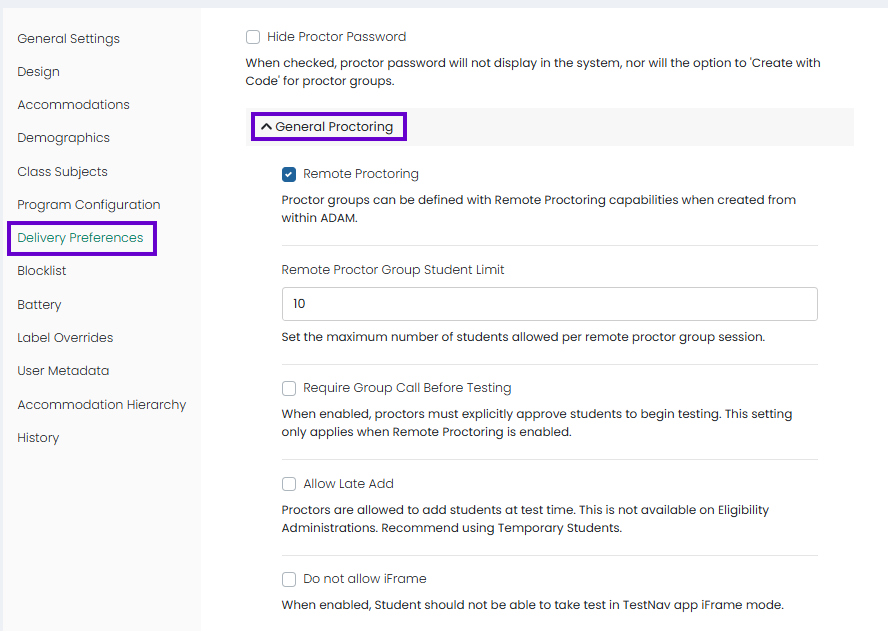
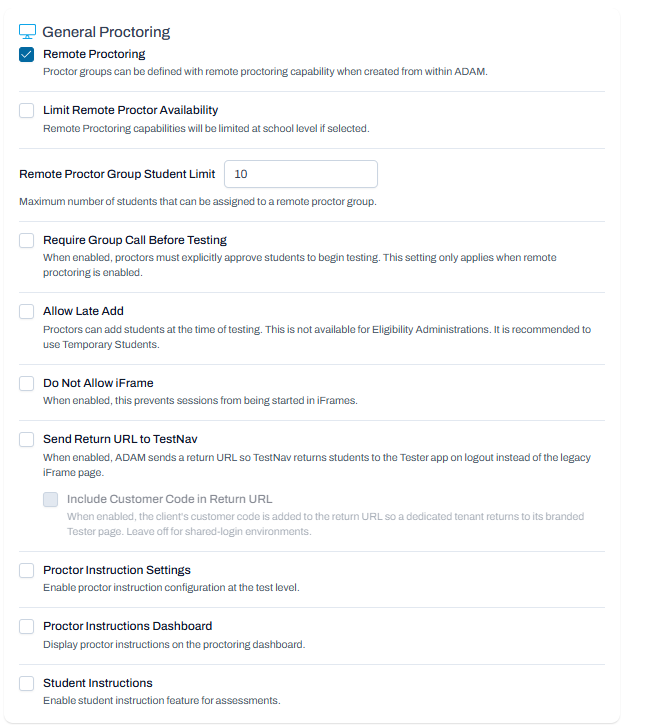
General Proctoring
- Remote Proctoring: Allow remote proctoring, such as at a different school. When enabled, the test will have the option for remote proctoring.
- Limit Remote Proctor Availability: Remote proctoring capabilities will be limited at school level if selected.
- Remote Proctoring Student Limit: Set a maximum number of students that can be added to a remote proctor group session, with validation and user feedback when the limit is reached.
- Require Group Call Before Testing: When enabled, proctors must explicitly approve students to begin testing. This setting only applies when remote proctoring is enabled.
- Allow Late Add: Do not use with Eligibility assignments. Use Add Temporary Students instead if needed. See also: Administrations: Create and Merge Temporary Students
- Do not allow iFrame: When enabled, student should not be allowed to test in TestNav app iFrame mode.
- NEW UI ONLY:
- When enabled, ADAM sends a return URL so TestNav returns students to the Tester app on logout instead of the legacy iFrame page.
- When enabled, the client's customer code is added to the return URL so a dedicated tenant returns to its branded Tester page. Leave off for shared-login environments.
- Speeding Alert: Alert proctors when a student is moving through the test too quickly. When enabled, the alert can be turned on per test.
- Enable proctor instruction configuration at the test level.
- Display proctor instructions on the proctoring dashboard.
- Enable student instruction feature for assessments.
- When enabled, ADAM sends a return URL so TestNav returns students to the Tester app on logout instead of the legacy iFrame page.
Classic User Interface:
Updated User Interface:
Anonymous Proctoring
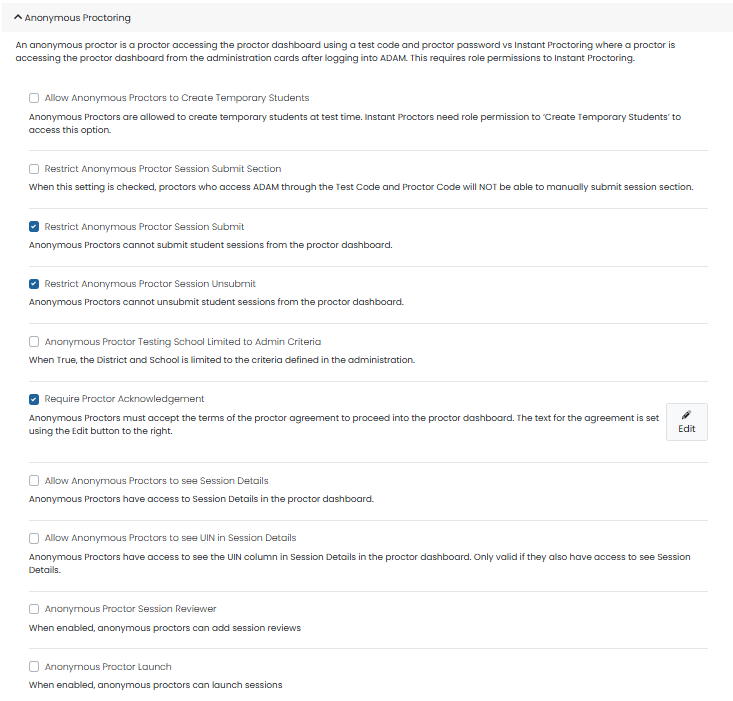
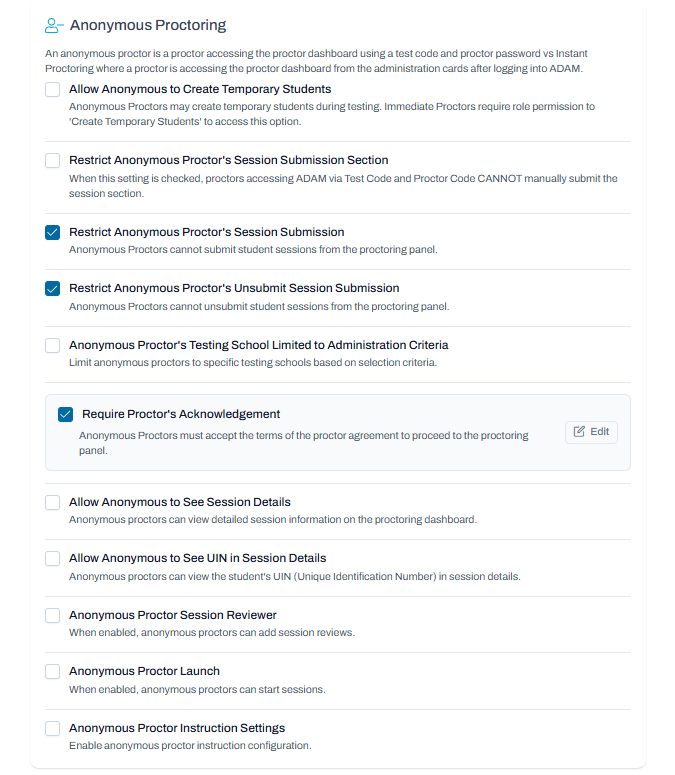
An anonymous proctor is a proctor accessing the proctor dashboard using a test code and proctor password vs Instant Proctoring where a proctor is accessing the proctor dashboard from the administration cards after logging into ADAM. This requires role permissions to Instant Proctoring. When an anonymous proctor launches the Proctor Dashboard for the first time, the system will capture and make available through export the proctors first name / last name and time stamp. This data only appears in the proctor group export if the tenant requires proctor acknowledgement.
- Anonymous Proctors are allowed to create temporary students at test time. Instant Proctors need role permission to ‘Create Temporary Students’ to access this option. See also: Administrations: Create and Merge Temporary Students.
- When this setting is checked, proctors who access ADAM through the Test Code and Proctor Code will NOT be able to manually submit session section.
- Anonymous Proctors cannot submit student sessions from the proctor dashboard.
- Restrict Anonymous Proctor's Unsubmit Session Submission (New UI Only): Anonymous Proctors cannot unsubmit student sessions from the proctoring panel.
- When True, the District and School is limited to the criteria defined in the administration.
- Anonymous Proctors must accept the terms of the proctor agreement to proceed into the proctor dashboard. Select Edit to add the text for the agreement.
- Allow Anonymous Proctors to see Session Details: Anonymous Proctors have access to Session Details in the proctor dashboard.
- Allow Anonymous Proctors to see UIN in Session Details: Anonymous Proctors have access to see the UIN column in Session Details in the proctor dashboard. Only valid if they also have access to see Session Details.
- Anonymous Proctor Session Reviewer: When enabled, anonymous proctors can add session reviews
- Anonymous Proctor Launch: When enabled, anonymous proctors can launch sessions
- Anonymous Proctor Instruction Settings (New UI Only): Enable anonymous proctor instruction configuration.
Classic User Interface:
Updated User Interface:
Session Management
Classic User Interface:

Updated User Interface:
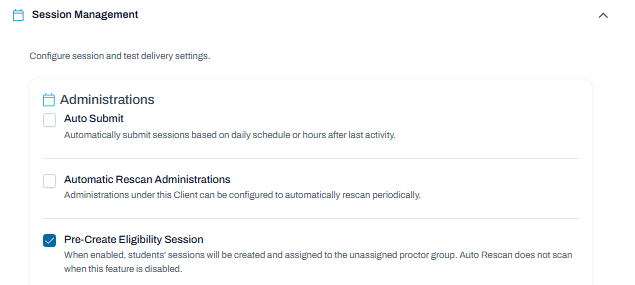
Administrations
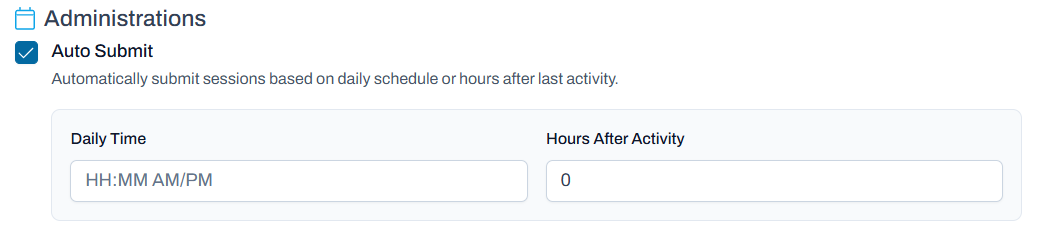
- Sessions can be configured to be submitted at a certain time daily or after a period of inactivity. Be sure to consider if any tests will be administered over multiple days. This only submits sessions that were started and not submitted; students who have not started are not impacted. As an alternative, permissioned user roles can bulk select students to submit. See also: Session Explorer
Classic User Interface:

Updated User Interface:
- Administrations can be configured to automatically rescan periodically.
- Student Sessions Rescan: This configuration is not currently recommended for use. In future releases, it will better support the ability for student sessions to be rescanned when user information changes on the student record such as class and enrollments, rather than needing to wait for the auto-rescan that runs on a timer.
- When enabled, students' sessions will be created and assigned to the unassigned proctor group. Auto Rescan does not scan when this feature is disabled. As a best practice, always enable.
- Create Default Proctor Groups: When enabled, Default proctor groups will be created based on Schools and Accommodations.
- When enabled, a student with Language – (x) accommodation is added to the PNP in TestNav. The language is used to update the skin in the TestNav player. Not applicable to tests delivered via AD Player.
Additional Dates : Enable additional date configuration for administrations.
Manual Student Assignment : Enable manual student assignment option during administration creation.
Soft Delete Sessions : When enabled, removing student assignments marks sessions as deleted instead of permanently deleting them.
Enable Testing Mode : When enabled, administrators can configure testing mode (Online or Paper) for manual administrations and form choices.
Allow Multiple Attempts : Allow multiple test attempts per administration.
- Determine which previously submitted ELKs will be sent to TestNav for the block items list (CAT Retest Settings). For the ‘Default’ option, for a CAT test, all previously submitted ELKs in the same test code are included in the block list. As an alternative, select: ‘None’ to send no previous ELKs or ‘Void’ to not send previously voided ELKs.
Tests
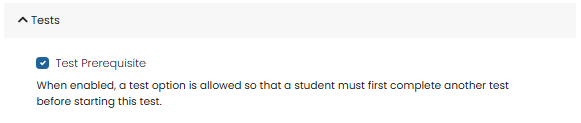
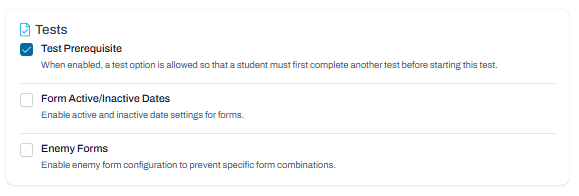
- Test Prerequisite: The test will have prerequisite tests. When enabled, a test option is allowed so that a student must first complete another test before starting this test.
Form Active/Inactive Dates : Enable active and inactive date settings for forms.
Enemy Forms : Enable enemy form configuration to prevent specific form combinations.
Classic User Interface:
Updated User Interface:
Reporting
Classic User Interface:
Updated User Interface:
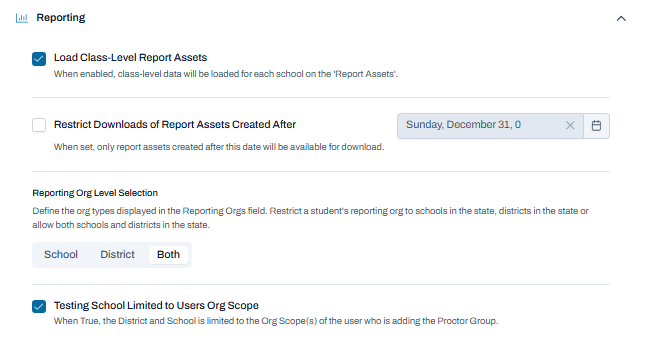
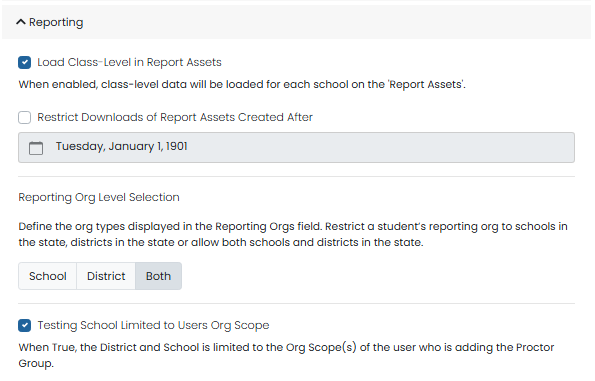
- When enabled, class-level data will be loaded for each school in Report Assets. See also: Report Assets.
- Restrict Download of Report Assets Created After: Use to implement a date-based download restriction system that prevents users from downloading report assets created after a configurable date. To enable, select on click the default date. Select Reset and then click date again to select a date. A lock icon will appear on the Report Assets page that restricts downloads.
- Define the org types displayed in the Reporting Orgs field. Restrict a student’s reporting org to schools in the state, districts in the state or allow both schools and districts in the state.
- When True, the District and School is limited to the Org Scope(s) of the user who is adding the Proctor Group.
Paper Settings
Classic User Interface:
Updated User Interface:
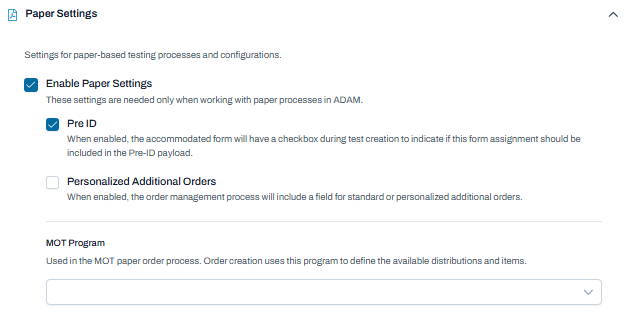
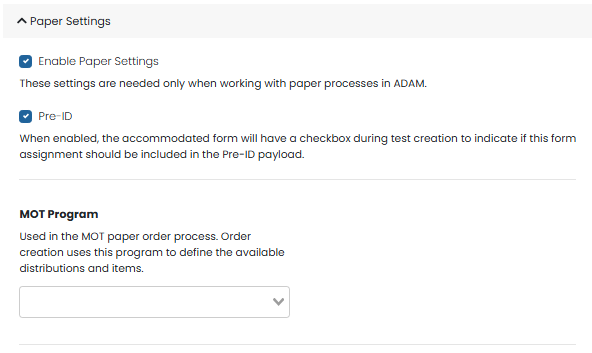
These settings are needed only when working with paper processes in ADAM for tests delivered via TestNav.
- When enabled, the accommodated form will have a checkbox during test creation to indicate if this form assignment should be included in the Pre-ID payload.
- Personalized Additional Orders : When enabled, the order management process will include a field for standard or personalized additional orders.
- MOT Program: Used in the MOT paper order process. Order creation uses this program to define the available distributions and items. Select the appropriate program.
Other
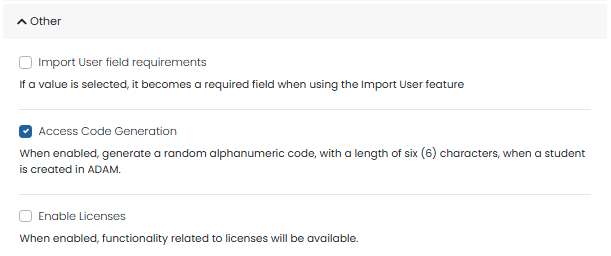
These options are rarely used as students should come through a sync with LaunchPad.
Classic User Interface:
Updated User Interface:
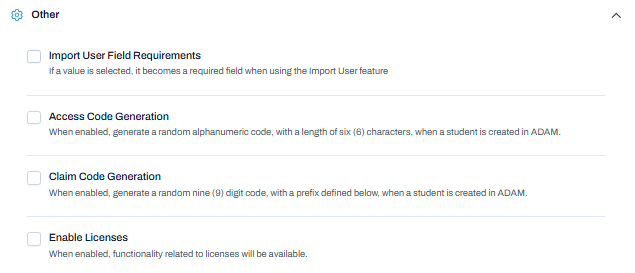
- If a value is selected, it becomes a required field when using the Import User feature.
- When enabled, generate a random alphanumeric code, with a length of six (6) characters, when a student is created in ADAM.
- Claim Code Generation : When enabled, generate a random nine (9) digit code, with a prefix defined below, when a student is created in ADAM.
- Enable Licenses: When enabled, functionality related to licenses will be available.
Accountability Codes
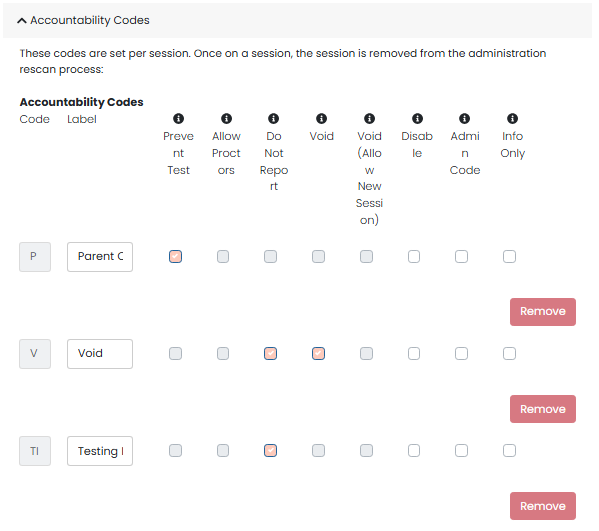
Accountability codes are used to provide record about why a student did not test, or something that occurred during testing at the session level. By default, they are available for all tests, but may be limited by program in Program Configuration. After a code has been applied to a student, you cannot edit or remove that code from this page. If you want to edit the code, you need to remove it from all sessions and wait for a job overnight to run to allow editing the next day. An exception is any code assigned to Void (Allow New Session): these can NEVER be removed from a session.
The ability to apply accountability codes to a session is controlled in System > Role Configuration > Test Management > Update Accountability Codes & Update Administrator-Only Codes.
The first five columns of checkboxes are read-only once a code has been applied to a session (Prevent Test, Allow Proctors, Do Not Report, Void, and Void (Allow New). The 'Label' column remains editable at all times, as do the last three columns (Disable, Admin Code, and Info Only) regardless of assignment to a session. If a code is removed from all sessions, the entire row, including all eight columns of checkboxes, the ‘Code’ and the ‘Remove’ button will activate again.
Classic User Interface:
Updated User Interface:
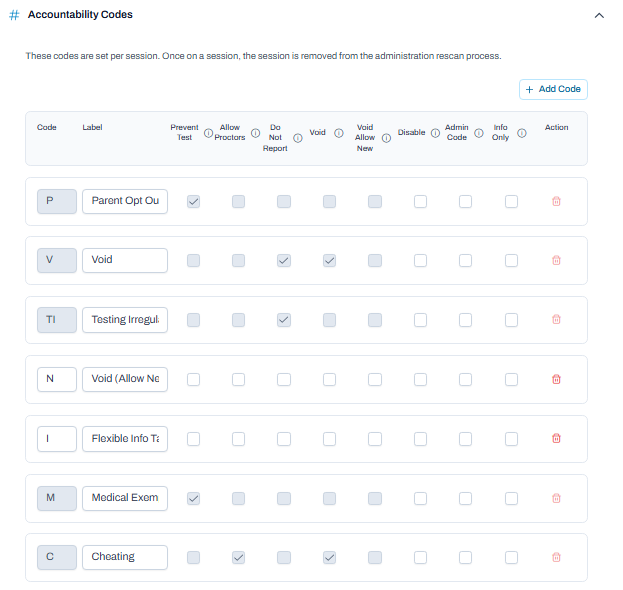
Select Add to enter a code and its action:
- Code: Enter an accountability code. For example, ME for Medical Excused. After codes have been applied to a student, they cannot be edited or removed from this page.
- Label: Enter a label for the accountability code. For example, Medical Excused.
- Prevent Test: Prevent the student from taking the test when this code is applied (such as for parent refusal). If the student attempts to start the test, a message will appear stating that they cannot take the test.
- Allow Proctors: Allow logged in proctors to assign accountability codes. This does not apply to anonymous proctors.
- Do Not Report: Exclude student scores from reports and extracts when this accountability code is applied; however, the scores will be passed to Core Warehouse via the session API. If the test was not attempted by a student, the session will be treated as Do Not Report. Students with this accountability code will appear on reports with "Do Not Report" shown for their Test Progress.
- Void: Void the session and exclude from reports and data extracts when this accountability code is applied. History for voided sessions will be retained in Session Explorer.
- Void (Allow New Session): Void the session while allowing the student to start a new session after a rescan. History of voided sessions will be retained in Session Explorer.
- Disable: Disable the accountability code so it may no longer be applied. It will no longer appear in ADAM except in the Session Explorer accountability codes filter (so that you can search on disabled codes). Existing sessions with the disabled accountability codes are not affected.
- Admin Code: Make this code only available to roles with rights to add administrator-only codes. This permission is available per user role in System > Role Config > Test Management > Administrations > Update Accountability Codes = On.
- Info Only: This code is intended to provide information only, rather than a code that triggers an action within the assessment management system. This code type will appear with the student’s information in the proctor dashboard, but it will not prevent sessions from being included in session updates (rescan, student movement, etc.). For example, some customers apply codes to mark a student’s session with information about a test irregularity that arose during testing, such as a student becoming ill during the session and not completing all questions. A session with such a code will still be included in admin rescan, and the student could still be moved to a new proctor group for a make-up session.
Admin Codes
For Pearson Use only.
Classic User Interface:
Updated User Interface:
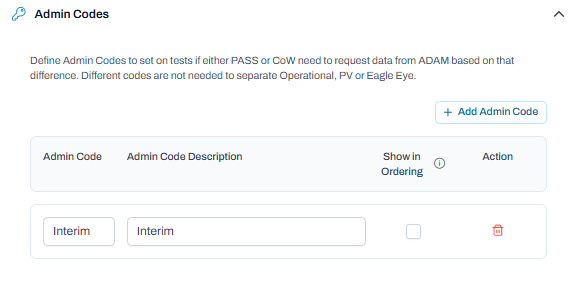
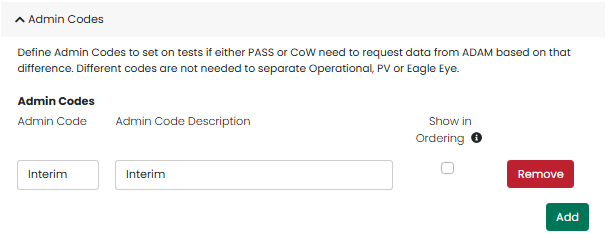
Only applies to tests delivered via TestNav using content created external to ADAM. Define Admin Codes to set on tests if either PASS or CoW need to request data from ADAM based on that difference. Different codes are not needed to separate Operational, PV or Eagle Eye. Select Add to enter Admin Codes.
Admin codes are used when ordering paper test materials.
- Admin Code: Enter an administration code.
- Admin Code Description: Enter a description for the admin code.
- Show in Ordering: Select to have the admin code available in paper ordering (Orders).
Assignment Tags
Classic User Interface:
Updated User Interface:
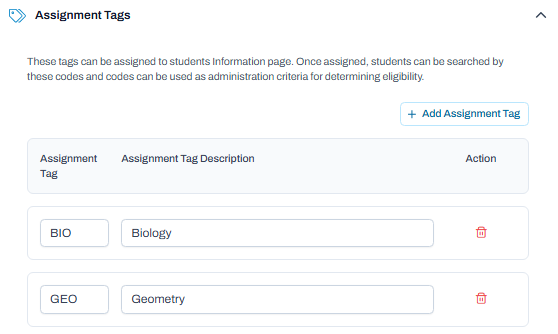
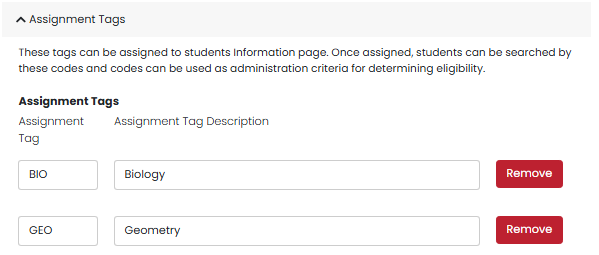
Enter student assignment tags to be used as criteria when creating an administration. This makes it easier to create administrations with out-of-level testing. Student assignment tags can be uploaded in Rostering > Users or in User Setup. Once assigned, students can be searched by these codes. See also: Users: Assignment Tags.
- Assignment Tag: Enter a name for the tag, such as ALG1.
- Assignment Tag Description: Enter a name for the tag, such as Algebra 1.
NOTES:
Accountability codes can no longer be edited in client settings if that code has been assigned to at least one session. If you want to edit the code, you need to remove it from all sessions and wait for a job overnight to run to allow editing the next day. Otherwise, set you a new code and unassign/re-assign. April Release see 'Accountability Codes > Read Only Option:'
Assigning accountability codes to a program was functionality introduced for programs that occur at the same time where one code does NOT apply to the other. A specific example is for Puerto Rico where codes for their Alterna program do not apply to their CRECE program. If you do NOT need to distinguish between programs and available codes, our suggestion is to not fill in codes in program configuration. This way, all codes from config will appear in drop lists (with the exception listed below). Otherwise, the list reads from program configuration.
EXCEPTION: The only configuration checkbox in client settings that affects the drop list is the 'Admin Code' setting, which means a user has to have a permission to assign. Ex. Only state level users can assign void/allow new session.
Tiny Link: https://support.assessment.pearson.com/x/KoApBw