See also: Results Explorer
About Exporting Reports
Most reports are exportable. Where the exported file is available will vary by report type; this is to support variations in available filters and typical file sizes.
Export Report
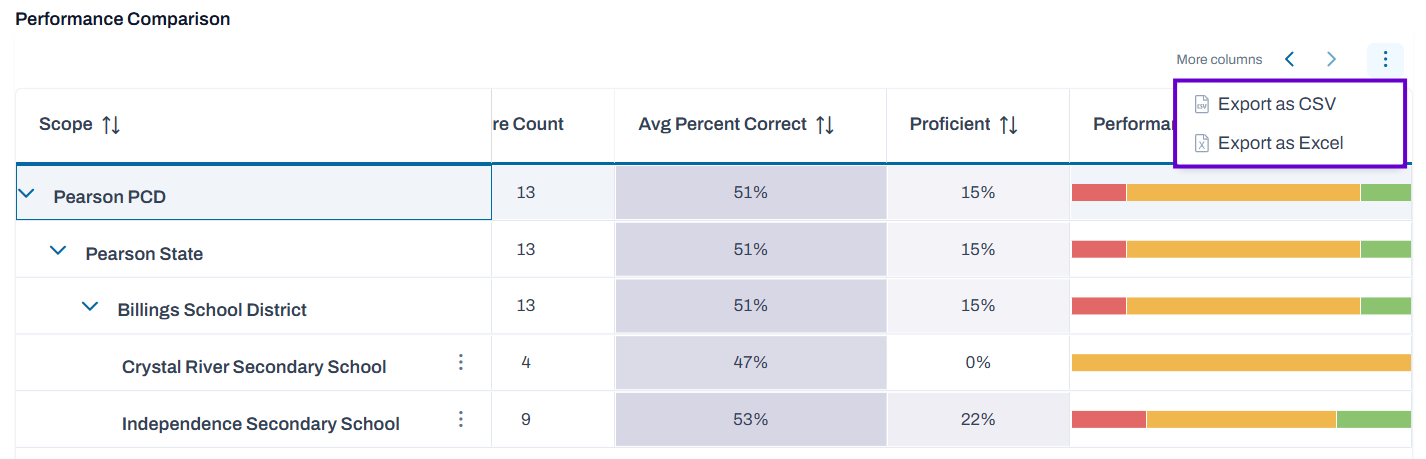
To export a report, click the three dots in the righthand corner next to the column navigation arrows.
Classic User Interface:

Updated User Interface:
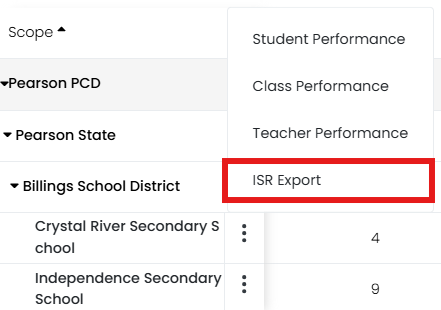
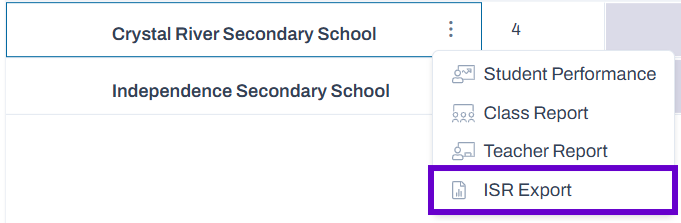
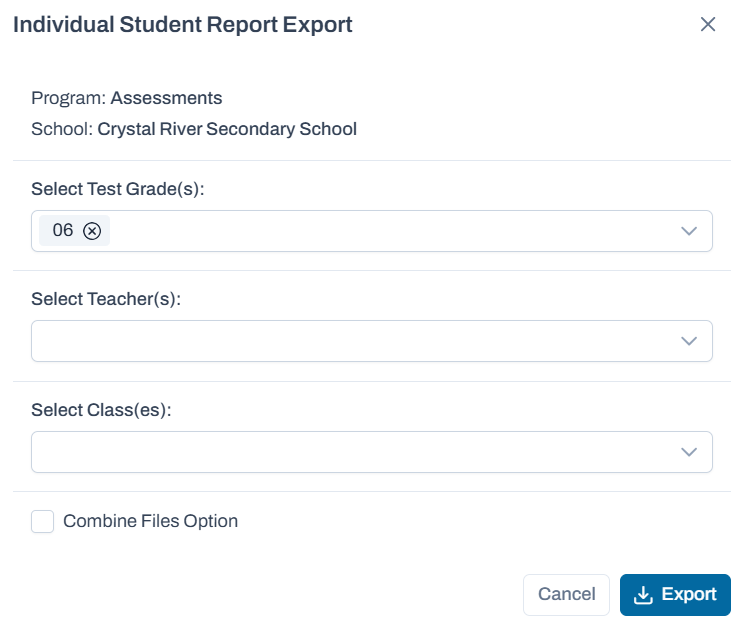
ISR Export
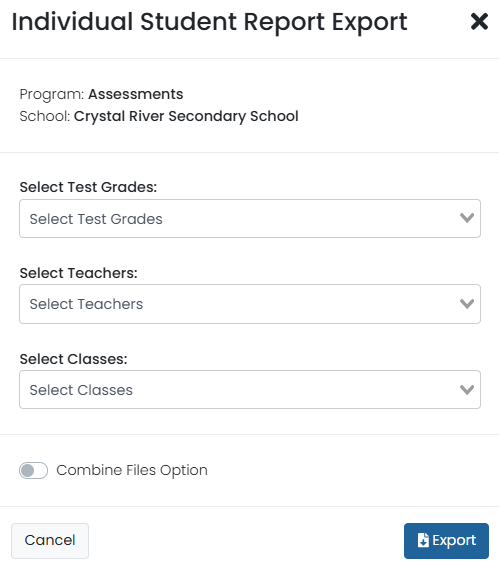
ISR Export works the same from the Performance Dashboard or Performance Summary tab:
1. Select a school.
2. If desired, toggle on ‘Combine Files Option’ to merge up to 200 students in each file.
3. Select Export.
4. Select the Downloads icon; this is the same as linking from the confirmation message.
Classic User Interface:

Updated User Interface:

5. On the Downloads page, select the Download icon when the download is ready. A zip file will appear in your browser’s download area.
Classic User Interface:
Updated User Interface:
Classic User Interface:
Updated User Interface:
Tiny Link: https://support.assessment.pearson.com/x/woBICg