This interaction type allows authors to add a prompt, set the shape (circle or square), min/max segments, start segments, and alt text. Students can add/remove segments by selecting the buttons and add responses by selecting in each segment. There is also a clear button which will reset the model. This is a machine scored interaction.
See Author Test Items and Choice Interaction for general instruction on item creation.
Create a Fraction Model
From the Editor tab, select Add Interaction > Charts & Graphs > Fraction Model.
Enter a prompt.
Change the default Label if desired.
For Shape, choose Circle or Square.
Indicate the Min and Max Segments a student may select.
- Set the Start Segment to the initial number of pieces.
- Enter Alt Text to be read by a screen reader in addition to the prompt.
- Enter Properties. See also Item Properties.
- In Score Settings, the Max Points defaults to one but may be changed.
- In the Correct Response area, use the plus or minus icon to indicate the correct number of segments, and then select the correct number of segments to set the answer.
- Select Save.
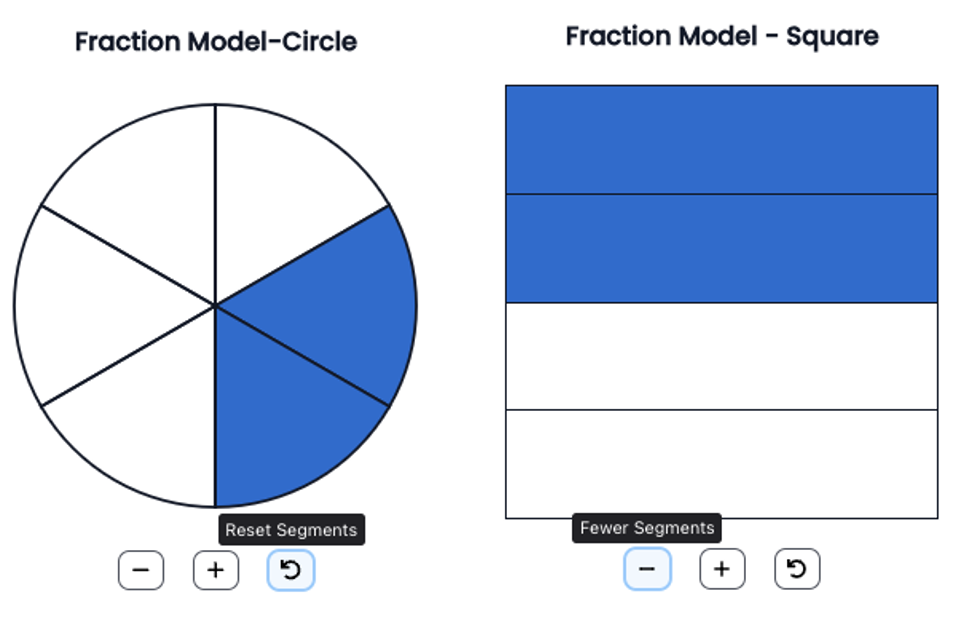
Add Additional Fraction Models
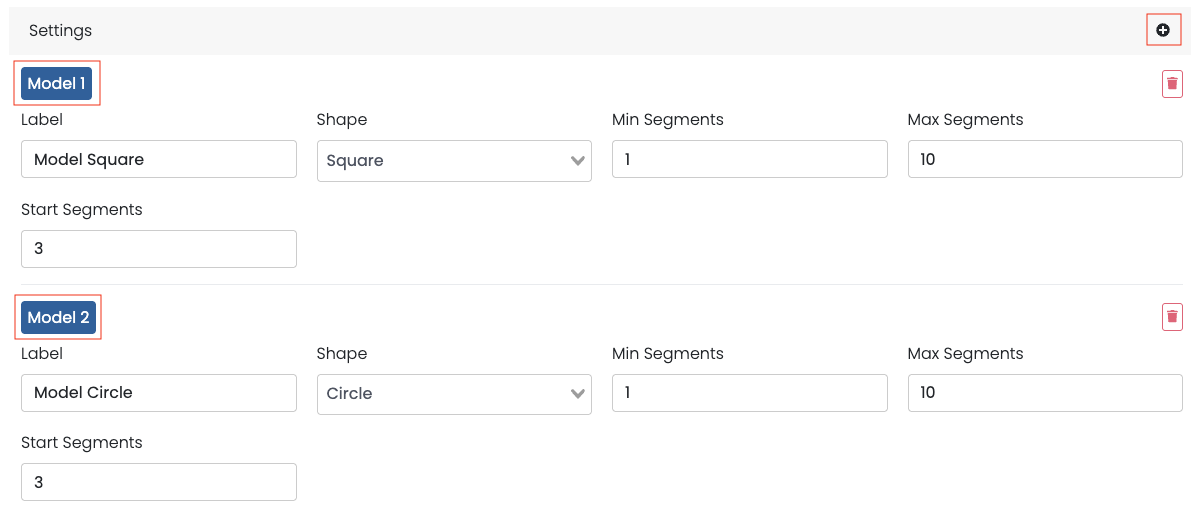
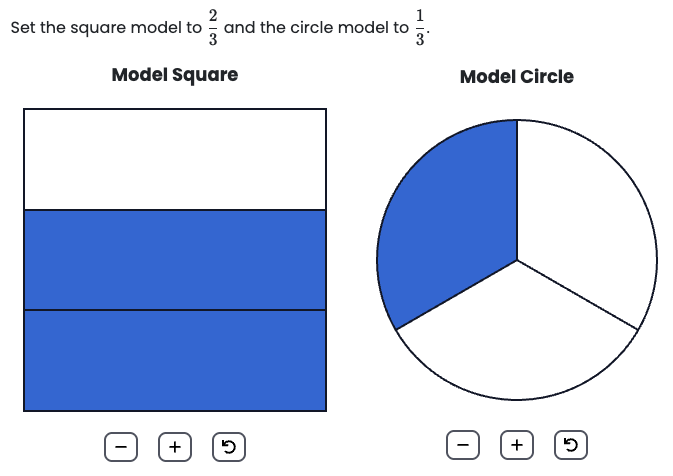
Authors can configure several fraction models within a single interaction, displayed side-by-side. Models are scored collectively, and partial scoring is not yet implemented.
Exact vs. Equivalent Scoring
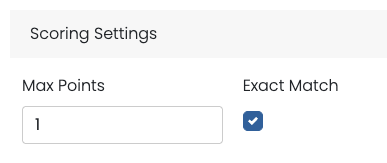
An “exact vs equivalent" scoring toggle allows authors to choose ‘Exact Match,’ which only scores responses as correct if they match the answer set exactly, rather than accepting equivalent answers.
Tiny Link: https://support.assessment.pearson.com/x/tgBaCw