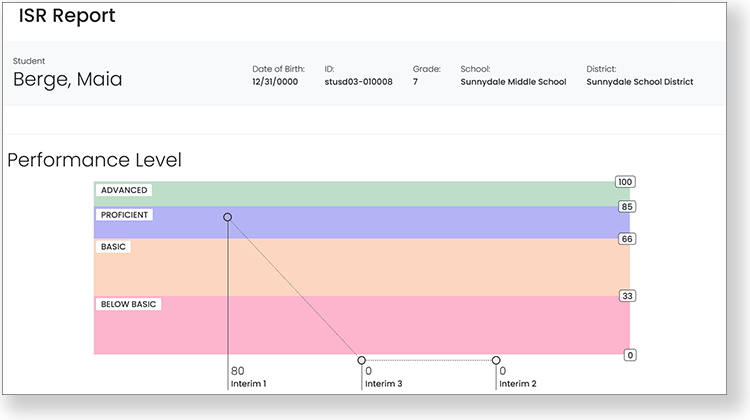
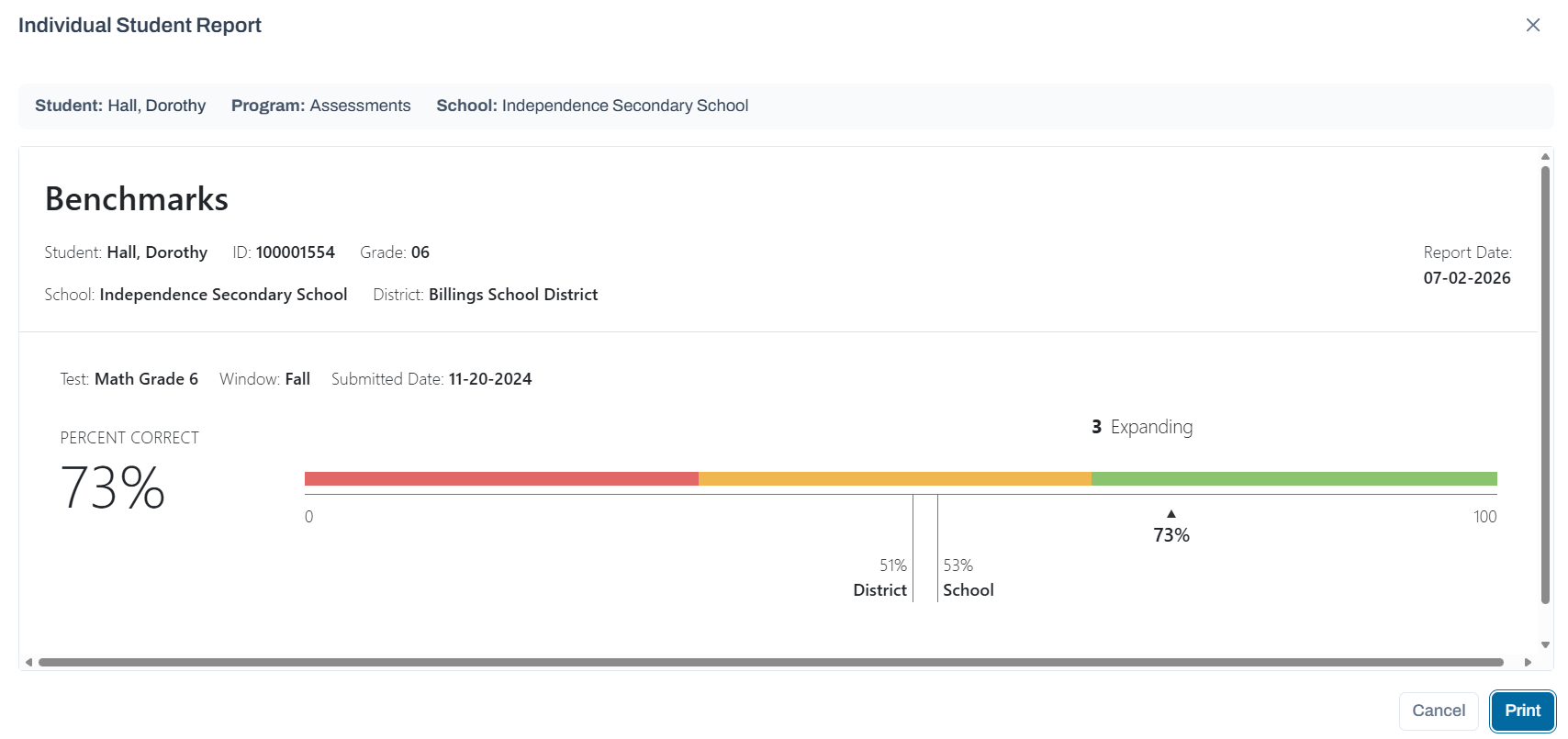
The Individual Student Results (ISR) Report shows individual student performance across tests windows on tests assigned to a program. In the ISR, student's current year enrolled organization drives the school field. If there are multiple testing programs with ISRs, the user can select which one to view.
For School and District Administrators
1. Go to Reporting > Performance.
2. Select a Program.
3. Select anywhere in a test row to open the Performance Report.
4. Expand the organization list on left. Select the Actions menu for any school, and then select Student Performance. On the Performance Summary tab, select a student name to open the ISR report.
5. To view (and print, if configured for your program) the report, select View ISR.
There are several components that might be included in the report depending on your program, such as Growth, Score and Performance.
Classic User Interface:
Updated User Interface:
For Teachers
1. Go to Classroom > Student Performance.
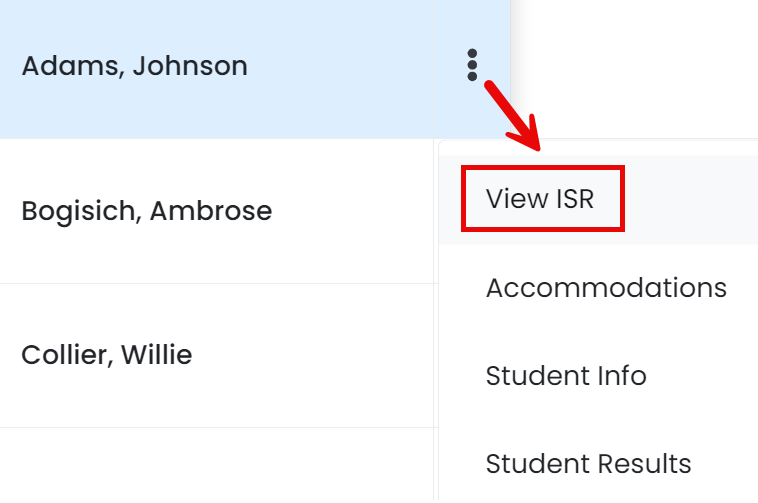
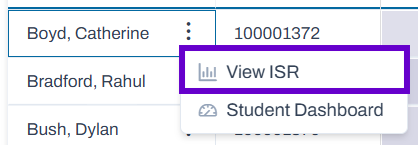
2. For any student, select the Actions menu, and then select View ISR.
Classic User Interface:
Updated User Interface:
3. To print the report, select Print.
Tiny Link: https://support.assessment.pearson.com/x/aQUgBg