See also: Session Explorer
In Session Explorer, permissioned users can flag a session as reviewed and add notes as needed. Users with access to Session Explorer can filter and view reviewed sessions. When exporting from Session Explorer, there is an option to include Session Review information.
Mark Session as Reviewed
1. Navigate to Operations > Session Explorer.
2. Use filters as needed to locate a session.
3. In the Actions menu, select 'Session Review.'
Classic User Interface:
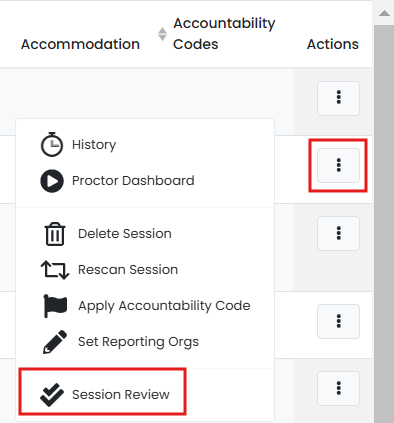
Updated User Interface:
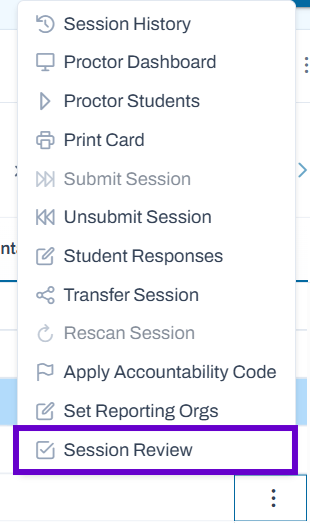
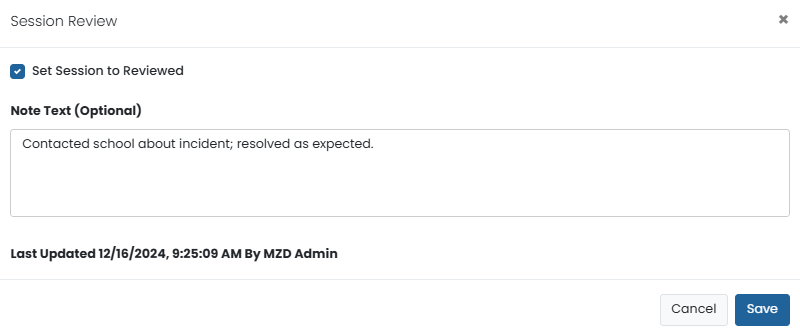
4. Select 'Mark this session as reviewed' to indicate this session has been reviewed. Optionally, add a note.
Classic User Interface:
Updated User Interface:
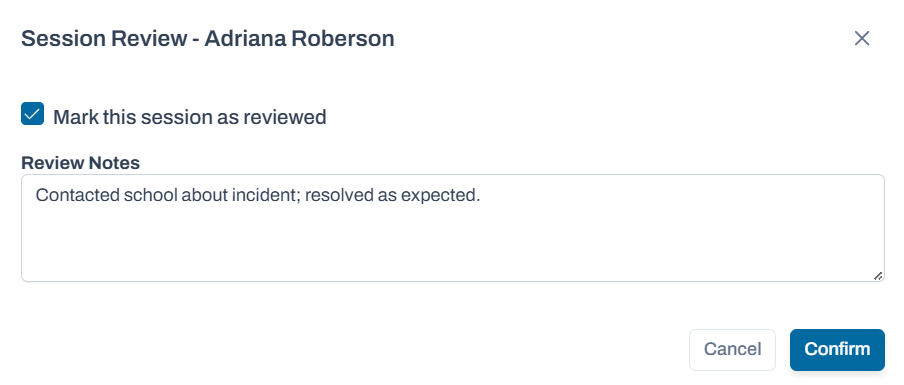
5. Select Save.
View Reviewed Session
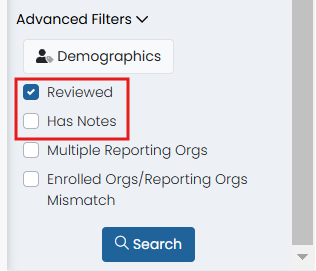
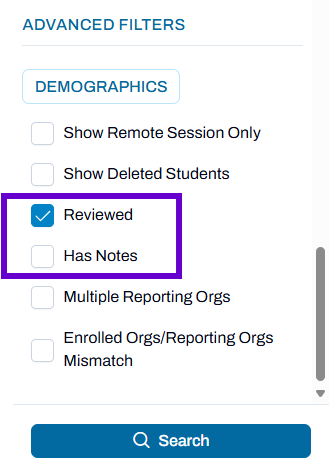
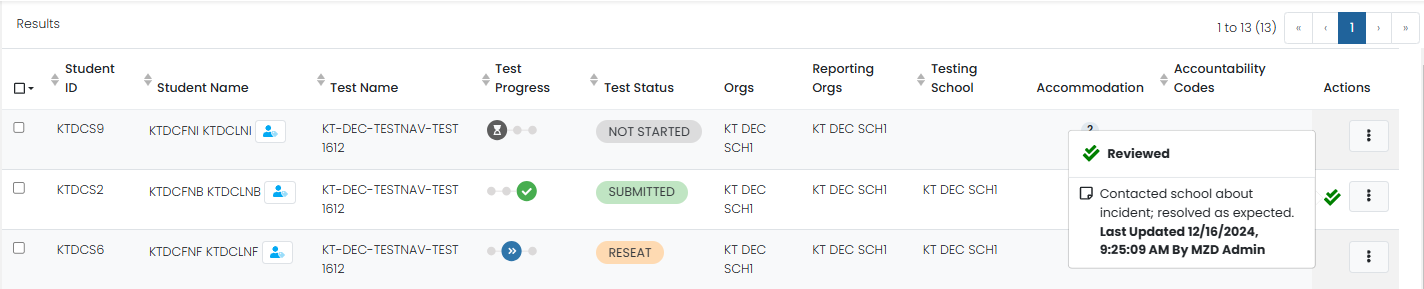
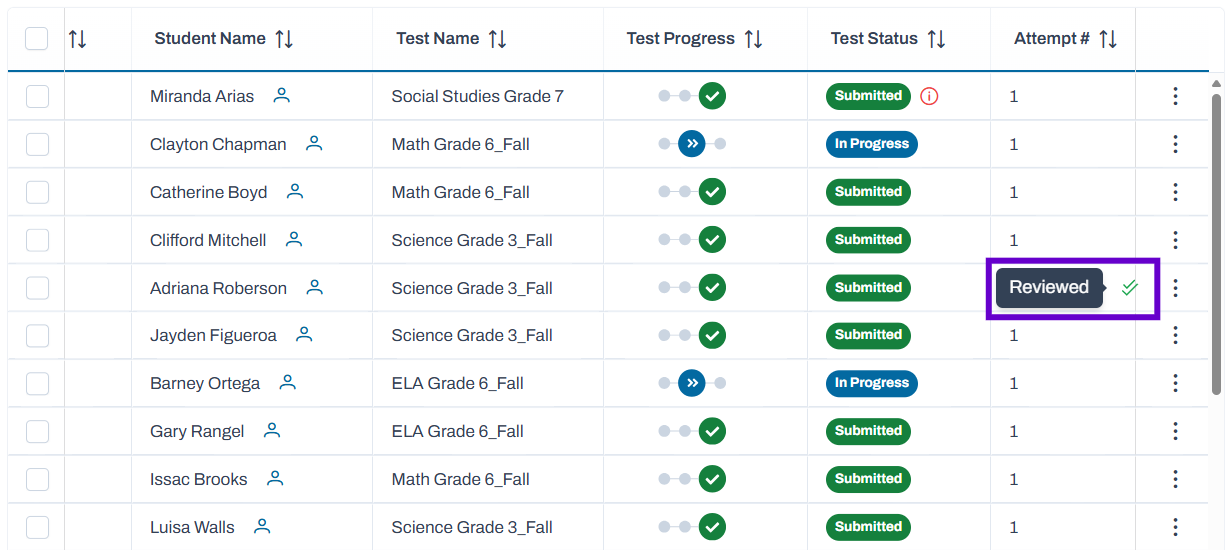
Reviewed sessions are indicated with a green, double checkmark icon. Filter on reviewed session in Advanced Filters.
Classic User Interface:
Updated User Interface:
Classic User Interface:
Updated User Interface:
Note for Site Administrators: The ability to mark sessions reviewed is controlled by a permission in
Reporting >
Session Explorer >
Session Reviewer.
Tiny Link: https://support.assessment.pearson.com/x/WgBeCg