Users with the correct permissions can view (read-only) each item and review student responses from a specific test session from a few different locations, depending on their access level. Responses to extended text items are included.
Access Student Responses
Once locating student responses using one of these methods, see the next section below, View Student Responses.
From the Student Dashboard
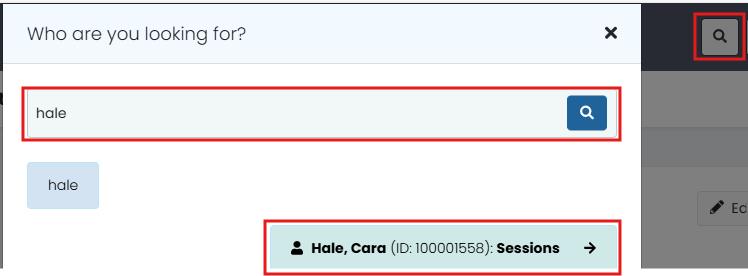
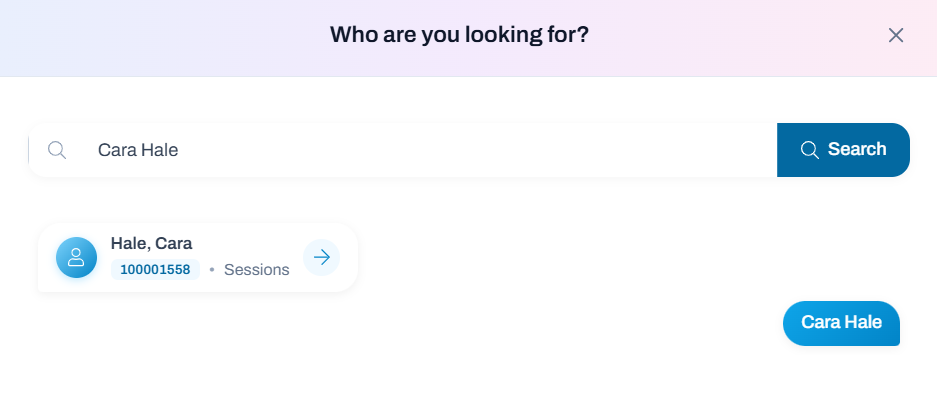
1. Select the Student Search icon.
2. Search for a student by name or ID.
3. Select the student name.
Classic User Interface:
Updated User Interface:
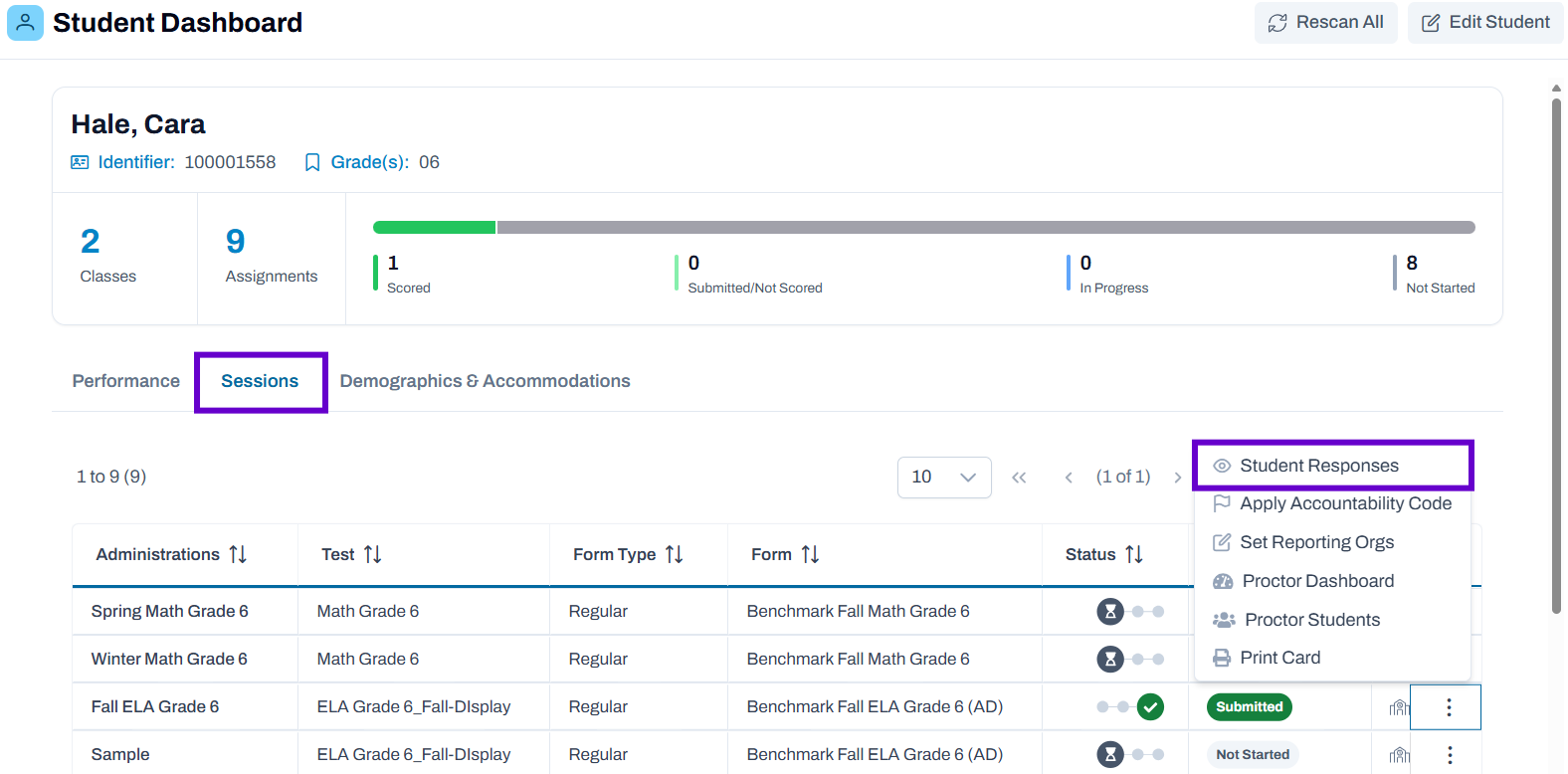
4. Select the Sessions tab.
5. In the Actions menu, select Student Responses.
Classic User Interface:

Updated User Interface:
From Administration Card: Student View
1. Navigate to Test Management > Administrations.
2. In an Admin Card, in the Students menu, select View.
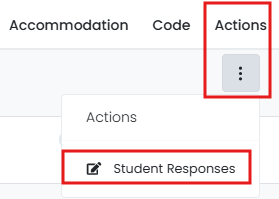
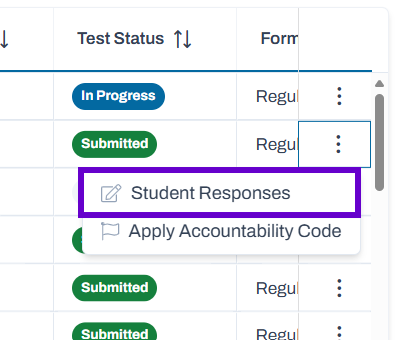
3. For a student, in the Actions menu, select Student Responses.
Classic User Interface:
Updated User Interface:
From Administration Card: Proctor View
1. Navigate to Test Management > Administrations.
2. In an Admin Card, in the Proctor menu, select View.
3. For a proctor group, select the Student icon.
4. For a student, in the Actions menu, select Student Responses.
From Session Explorer
1. Navigate to Operations > Session Explorer.
2. Search for a student using the filters provided.
3. For a student, in the Actions menu, select Student Responses.
View Student Reponses
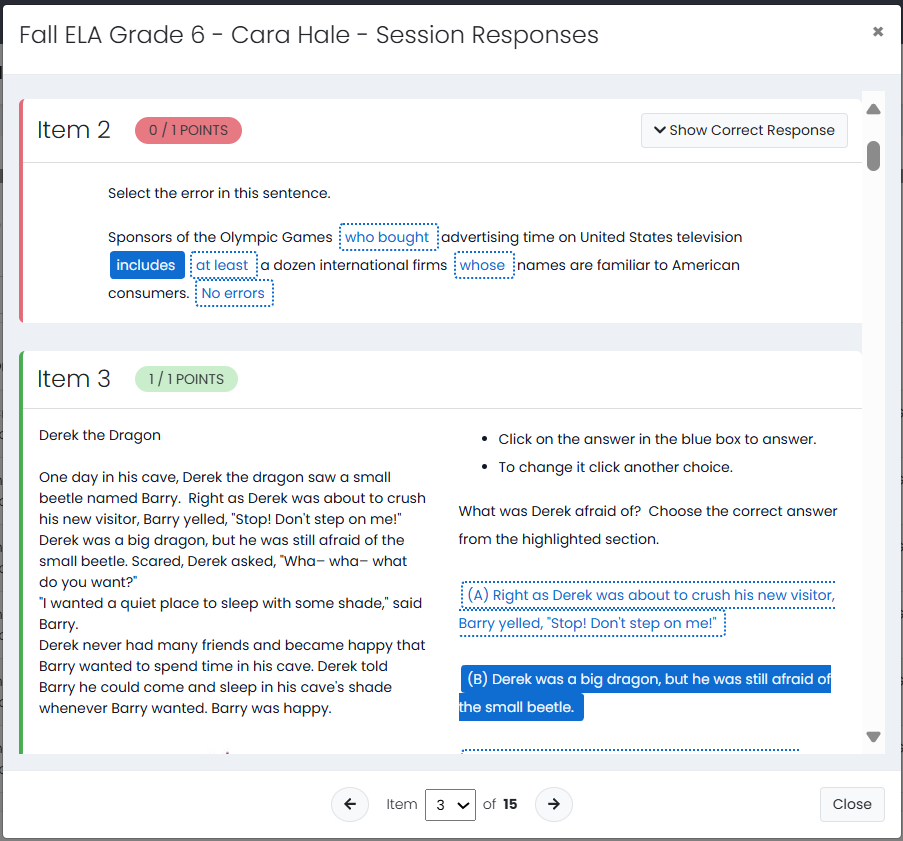
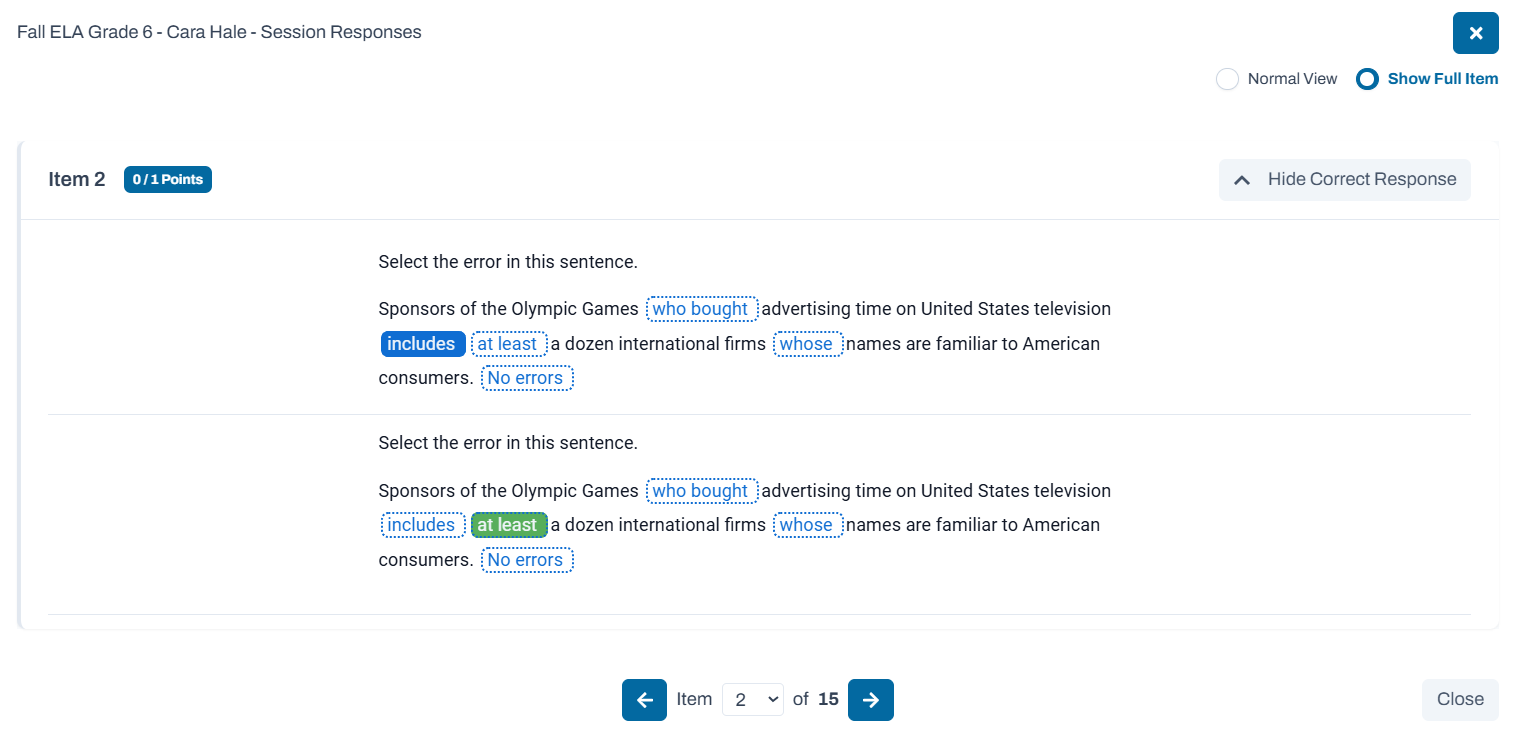
Using one of the methods described above, locate responses for a student. In the pop-up window, you can scroll through the test items to view the content of the item, student response (if any) and points achieved. Optionally, select Show Correct Response. Either use the scroll bar or the navigation tools at the bottom to view additional items. Select Close to return to the pervious screen and select another student if desired.
Classic User Interface:
Updated User Interface:
Tiny Link: https://support.assessment.pearson.com/x/dABaCw