See also: Performance Dashboard and Reports, Performance Report Summary Tab, Item Analysis, Standards Performance
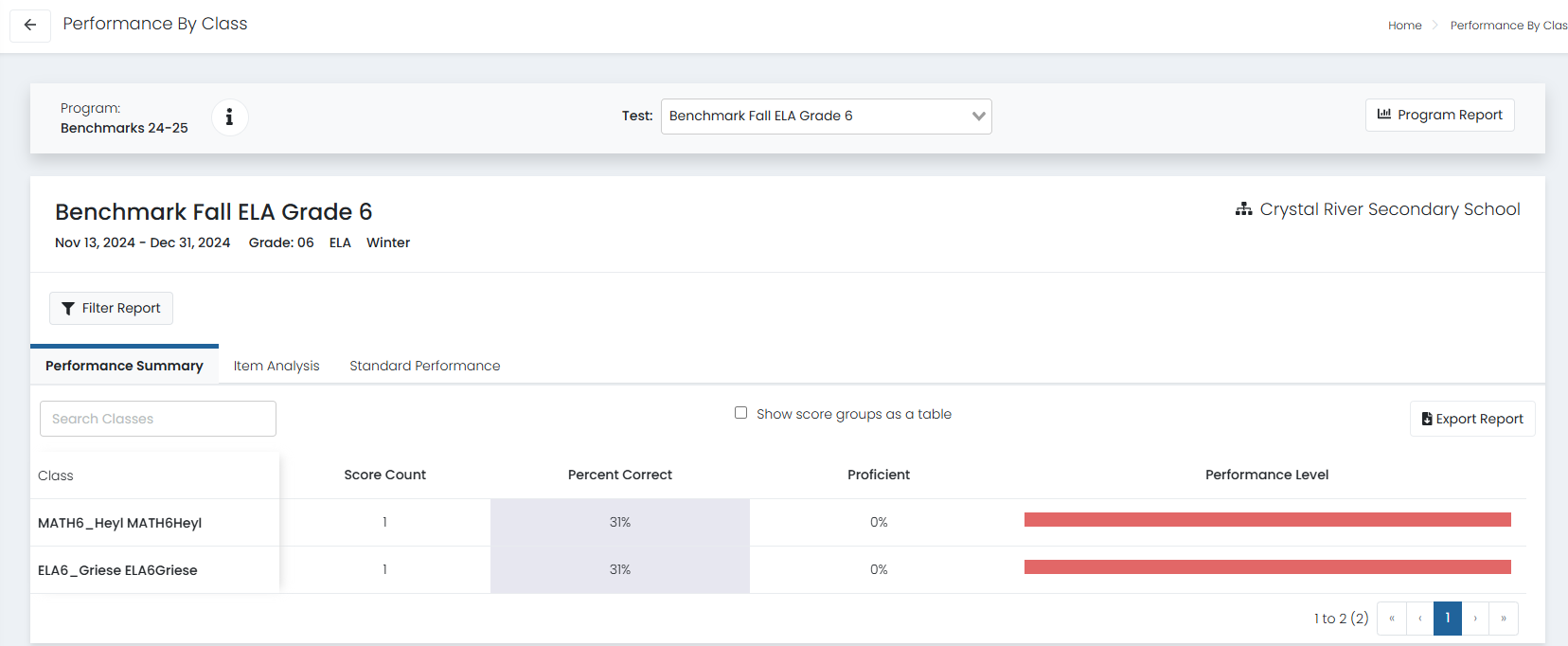
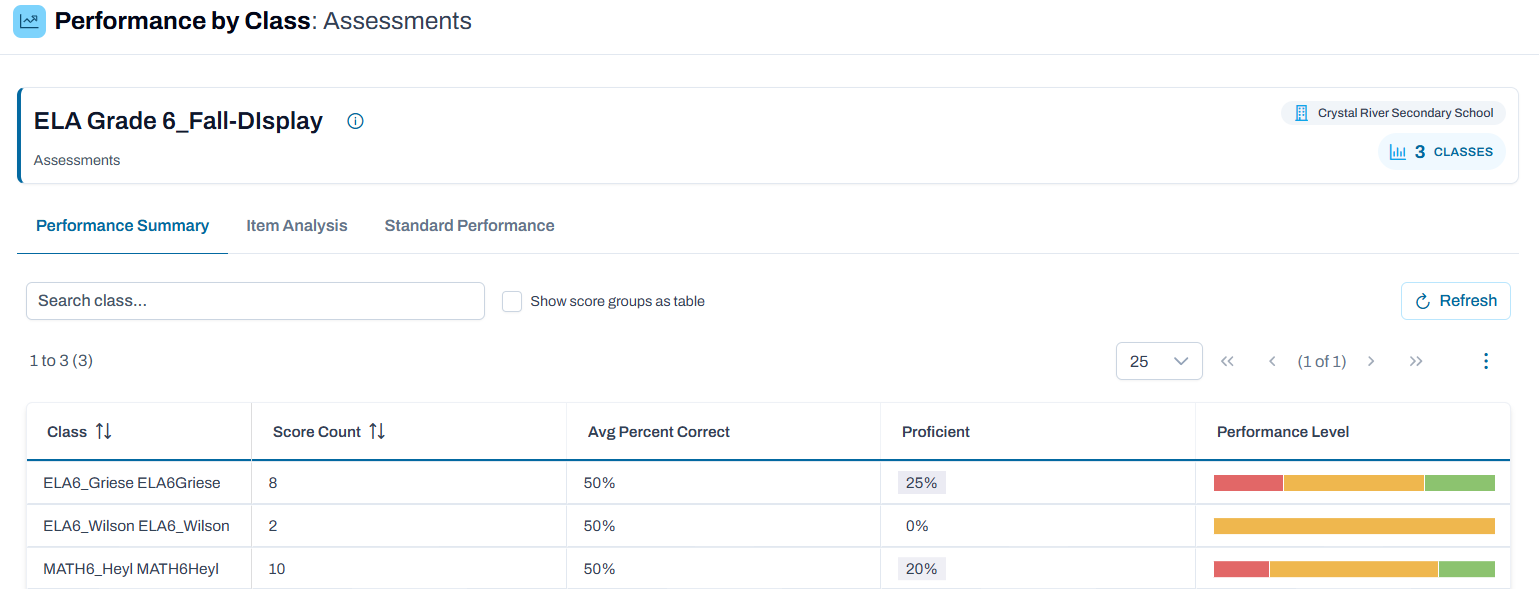
If class data is available in ADAM, view performance by class within performance reports. Item Analysis and Standard Performance tabs, if enabled, show item and standard details and performance comparison. An export option is available to permissioned users.
1. Navigate to Reporting > Performance.
2. Select a Program.
3. Select an administration.
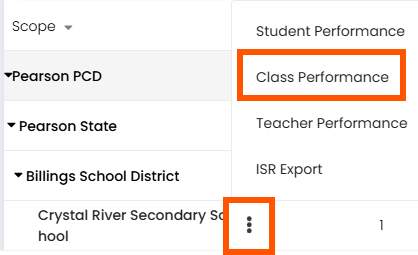
4. For a school, in the Actions menu, select Class Report.
Classic User Interface:
Updated User Interface:
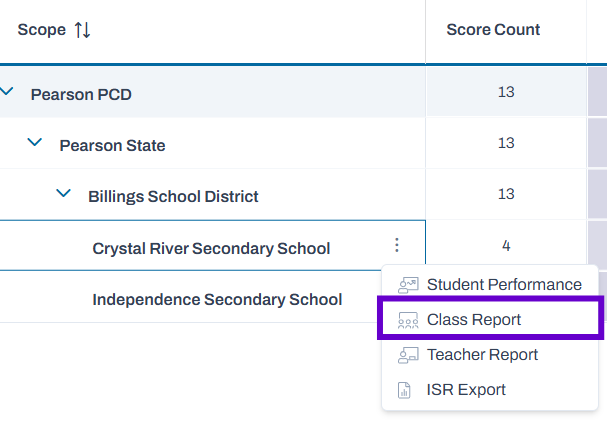
Note: Customers not using the eligibility-based method of assigning tests to students are able to drill down expand the organization hierarchy to see classes under the school rather than accessing in the kabob menu. Menu options may vary.
If available to your user role, you can:
- Export to a .CSV file.
- Navigate from the Performance Summary to the Item Analysis and Standards Performance tabs.
Classic User Interface:

Updated User Interface:

- Select a different test from the Test menu (only tests in the selected Program).
- If performance level is a score type, display as a table with student counts per score group.
- Filter the report by various options (including, for example, courses, academic sessions, and grades).
Classic User Interface:
Updated User Interface:
Tiny Link: https://support.assessment.pearson.com/x/C4CwCQ